Connect AI apps with MCP
Let Claude, ChatGPT, Cursor and other AI apps use your Goldfish memory over MCP.
Goldfish runs a local MCP server, so AI apps like Claude, ChatGPT and Cursor can search your memory. MCP is the Model Context Protocol, the standard most AI apps use to connect to outside tools. Ask Claude “what was I working on last Tuesday” and it can answer from your Goldfish memory, the same memory the Goldfish chat uses.
Automatic setup
Goldfish connects itself to the AI apps it finds on your computer. Sign in to Goldfish, restart the AI app, and the Goldfish tools show up on their own.
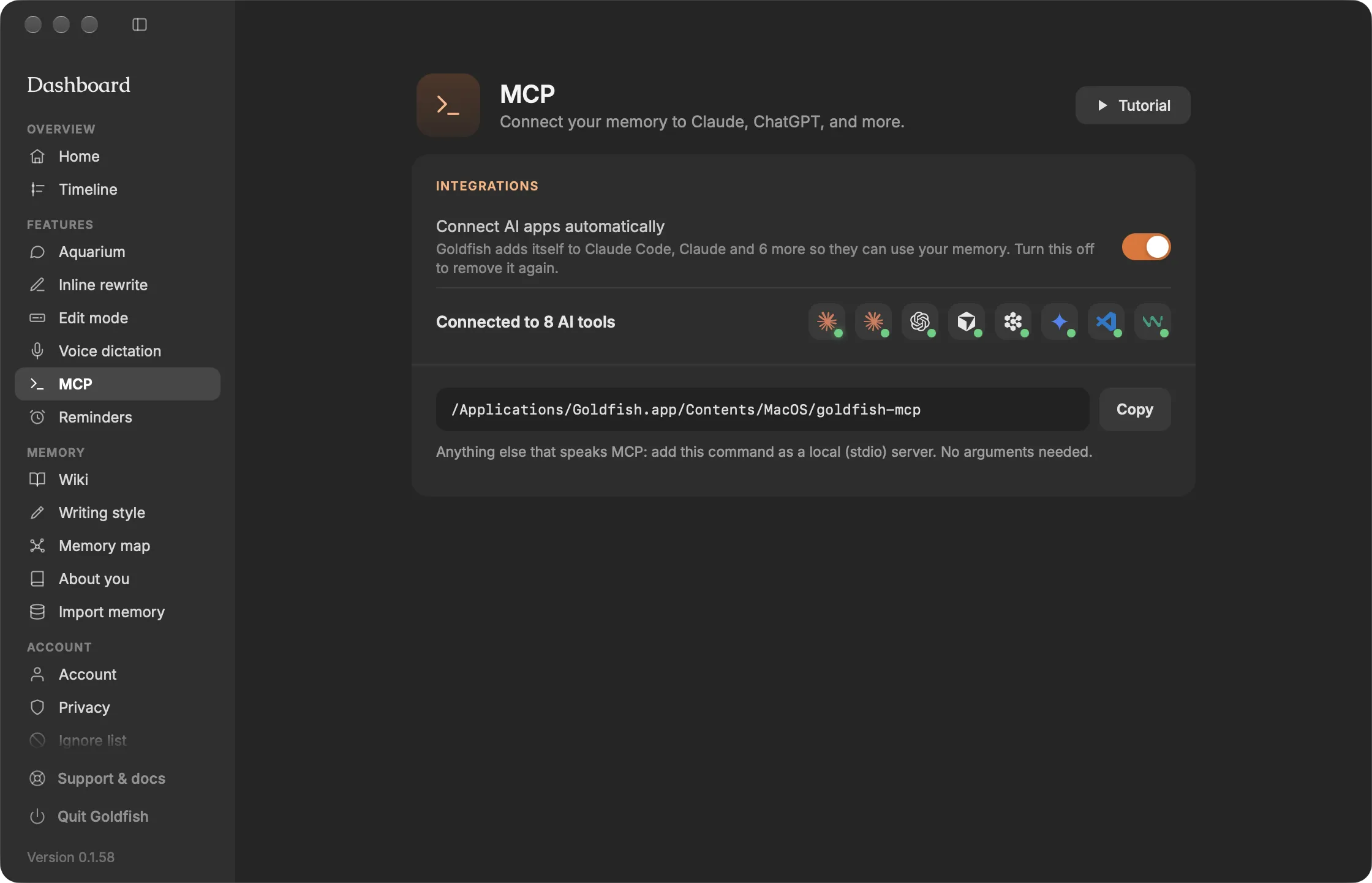
Everything lives on the MCP page of the Dashboard. The Tutorial button at the top plays a short video walkthrough.
Goldfish connects itself to these apps:
- Claude Desktop
- Claude Code
- ChatGPT desktop app
- Codex
- Cursor
- Windsurf
- Devin
- VS Code
- Cline
- Roo Code
- Gemini CLI
- LM Studio
Any other app that supports local MCP servers works through manual setup.
Turn it on or off
Open the Dashboard and choose MCP. Connect AI apps automatically is on by default.
- When it’s on, Goldfish adds itself to every supported AI app on your computer. You need to be signed in. Restart the AI app afterwards so it loads Goldfish.
- When it’s off, Goldfish removes itself from all of them.
The row under the switch shows each AI app Goldfish found. Hover an icon for its status: “in use now”, “ready” or “not set up”.
Reconnect an app
Goldfish adds itself to each app once and then leaves that app alone, so your own changes stick. If Goldfish goes missing from an app, because you removed it or the app reset its settings, Goldfish won’t add itself back, even after a restart.
To reconnect, turn Connect AI apps automatically off and on again. Goldfish then adds itself to every supported app again. Restart the AI app afterwards.
An AI app you install after Goldfish gets connected the next time Goldfish starts. To connect it right away, turn the switch off and on.
Manual setup
Use manual setup for an app Goldfish doesn’t support, or one that shows “not set up”. On the MCP page, click Copy next to the command. Add it to the app as a local stdio MCP server with no arguments.
The command depends on your computer, so copy it instead of typing it. On a Mac it usually looks like this:
/Applications/Goldfish.app/Contents/MacOS/goldfish-mcpOn Windows it is usually %LOCALAPPDATA%\goldfish\bin\goldfish-mcp.exe.
Most apps take a JSON entry like this one:
{
  "mcpServers": {
    "goldfish": {
      "command": "/Applications/Goldfish.app/Contents/MacOS/goldfish-mcp"
    }
  }
}
In JSON, write each backslash in a Windows path twice, like
C:\\Users\\you\\AppData\\Local\\goldfish\\bin\\goldfish-mcp.exe.
In Claude Code, one command does it:
claude mcp add --scope user goldfish /Applications/Goldfish.app/Contents/MacOS/goldfish-mcpCodex and the ChatGPT desktop app share their MCP settings, so one command covers both:
codex mcp add goldfish -- /Applications/Goldfish.app/Contents/MacOS/goldfish-mcpOnce an app connects, its icon shows up in the row on the MCP page.
Managed enterprise Claude installs block automatic registration, so they need the manual route. Paste the command into the app’s MCP settings.
Try it
After you restart the AI app, ask it something only your memory knows:
- “What was I working on yesterday afternoon?”
- “Summarize my week.”
- “Who is Anna, and what did we last talk about?”
- “How much time did I spend in Figma this week?”
- “What did I promise to send people this week?”
The AI app decides when to use Goldfish. If it answers without it, start your question with “Check Goldfish”.
Troubleshooting
- The Goldfish tools don’t show up. Check that you’re signed in to Goldfish, then restart the AI app. If that doesn’t help, turn Connect AI apps automatically off and on and restart the AI app again.
- An app shows “not set up”. Goldfish couldn’t edit that app’s settings, usually because they contain comments or a format it can’t safely change. Add Goldfish to the app with manual setup.
- VS Code asks whether to trust the server. It asks once, the first time Goldfish starts in VS Code. Allow it.
- Goldfish isn’t running. You don’t need to open Goldfish first. The AI app starts it the first time it uses a Goldfish tool. If Goldfish can’t start, the tool reports an error. Open Goldfish yourself and ask again.
What the AI app can do
Connected apps can search everything Goldfish has captured and read the summaries of your activity. The MCP server lives on your device and accepts connections only from your own machine. What an app reads from Goldfish becomes part of your conversation with that app, so it is handled under that app’s own privacy terms.